

Please note that leader has the ability to schedule coaching sessions, and you as their coach cannot do this on their behalf. Once a coaching session is scheduled, it will be automatically added to the coach’s calendar on the Coaching Platform (i.e. the coach does not have the option to accept, decline, or propose a different time).
The confirmation email that both you and your coach will receive will include details, such as the meeting date, time, and the video conferencing link. You will also have the option to add the meeting to your Google calendar. Please note that if your meeting time has been changed, you will have to manually remove the original meeting from your Google calendar.
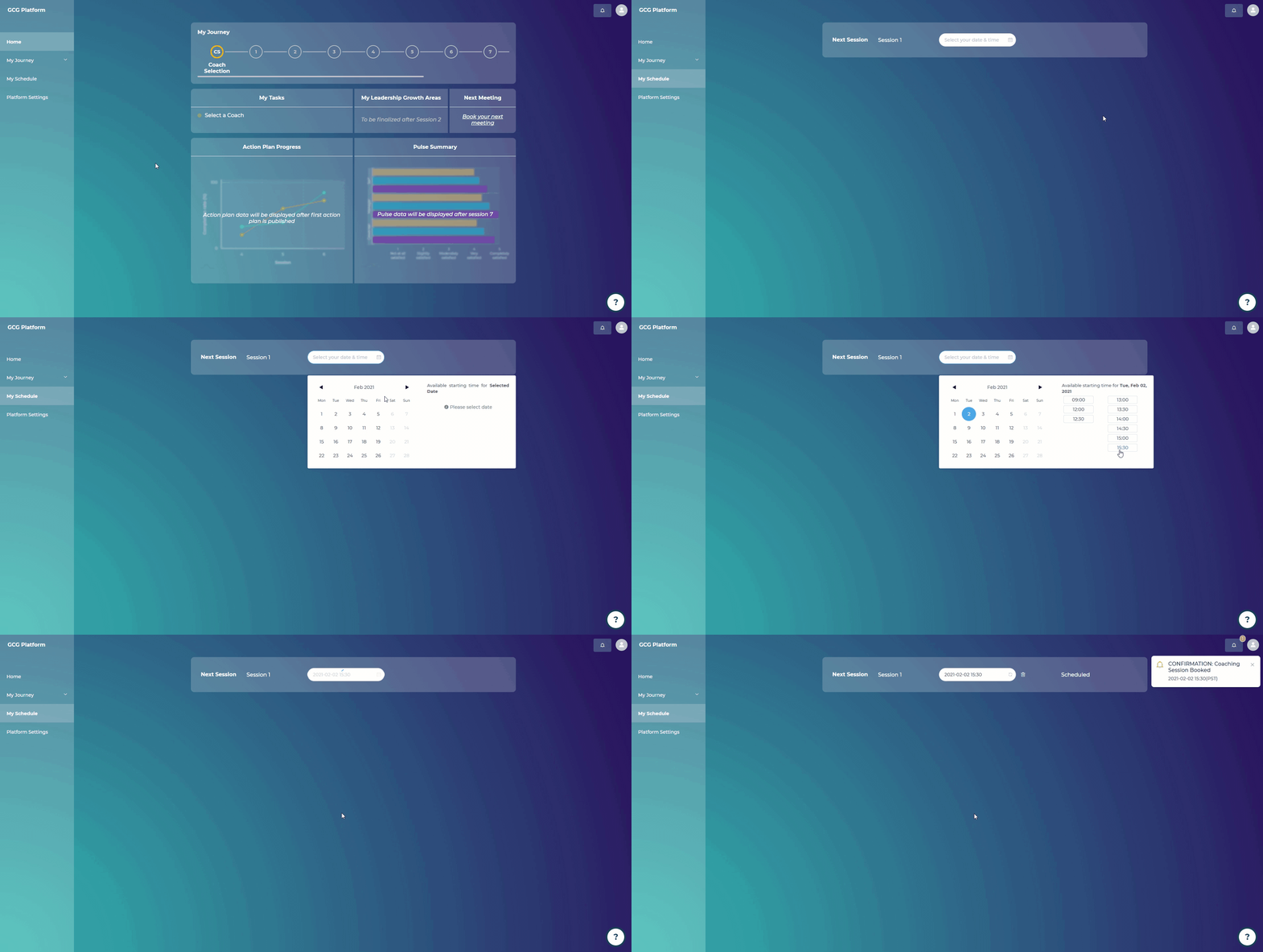
Steps for the leader:
Click on “Home”
Click on “Book your next meeting”
Click on “Select your date & time”
Select your preferred date and time based on the coach’s availability
Click “Book”
You will receive a notification, as well as a confirmation email informing you that the coaching session has been successfully booked.
The coach will also receive a notification email and the meeting will be automatically scheduled in their calendar.
What is the minimum time to schedule each coaching session?
For sessions 1-3: minimum 24 hours in advance. The platform will not allow you to book a coaching session less than 24 hours in advance.
For sessions 4, 5, 6, 8, 9, 11, and 12, there is a minimum of 8 calendar days wait before the next coaching session can be scheduled, in order to give you time to collect feedforward suggestions from your coworkers.
Sessions 7, 10, and 13 (the Pulse survey debrief sessions) can be scheduled after 15 days from the completion date of the previous session.